


Xiaomi Smart Camera 4 – Zoom Version, 4K Indoor Monitoring Camera
Xiaomi Smart Camera 4 – Zoom Version, 4K Indoor Monitoring Camera
Get $20 off when you spend $1,000 or more! Learn more

Product Infomations
Product Infomations
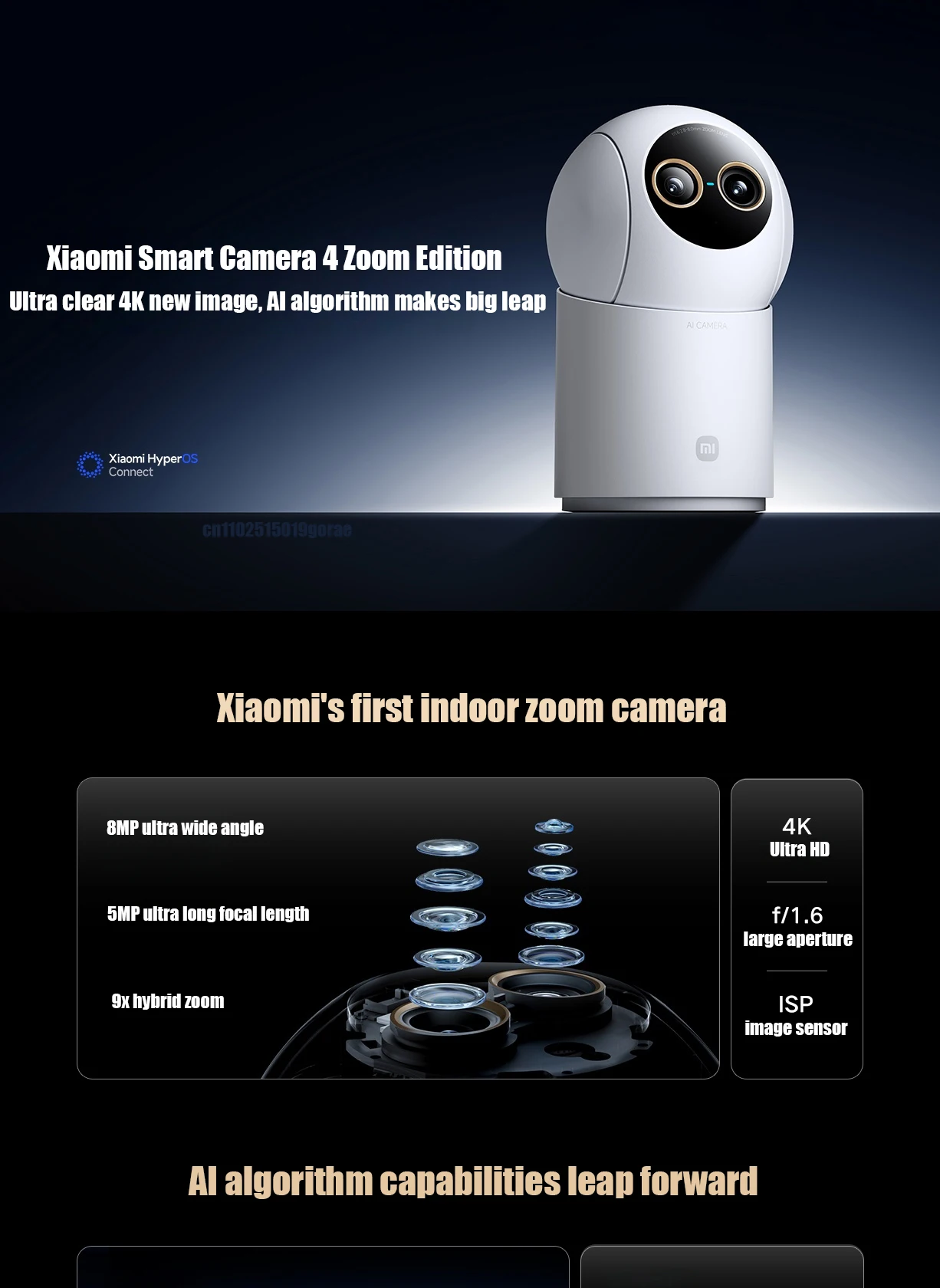
Detailed indoor monitoring with flexible zoom control.
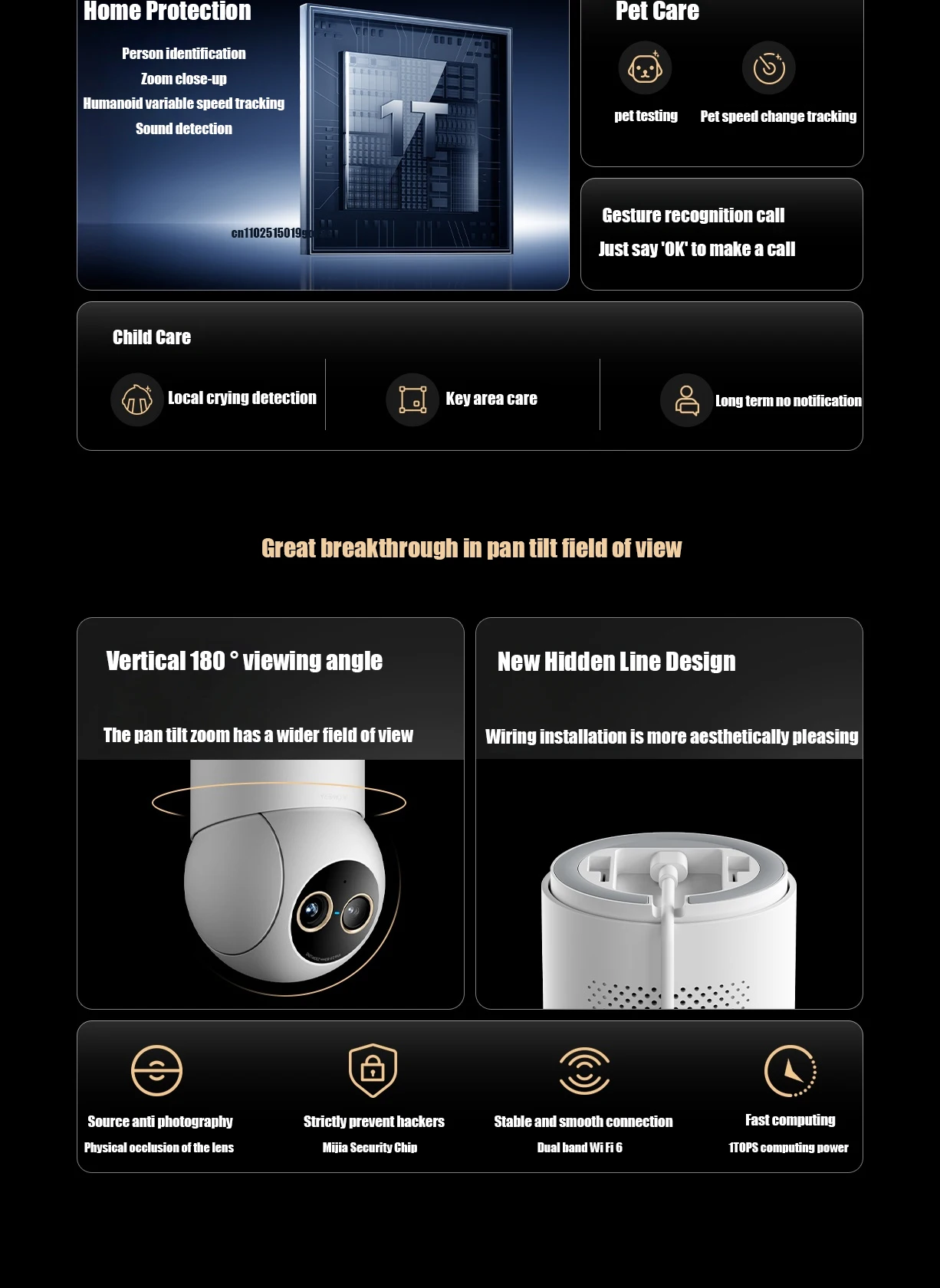
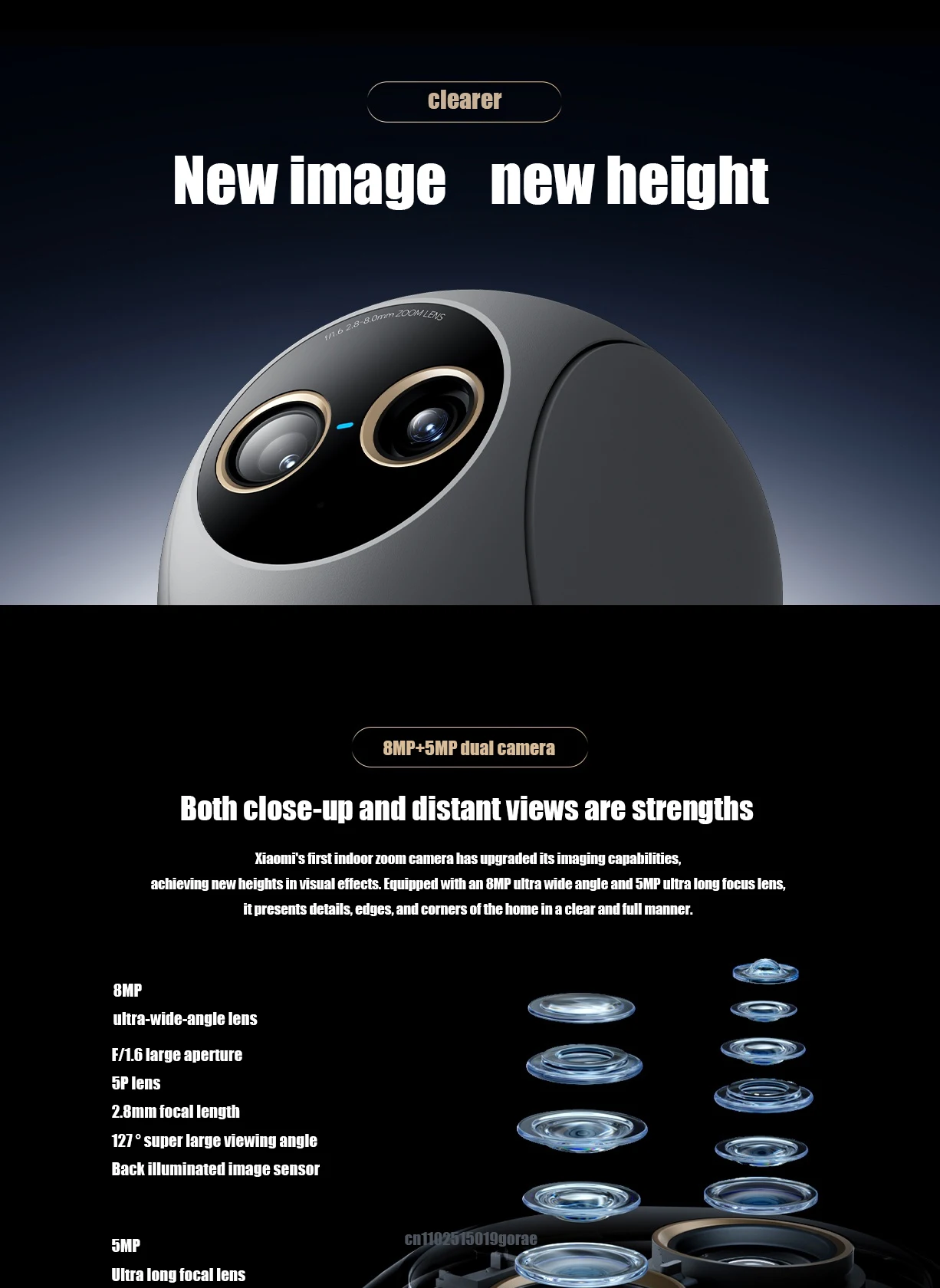
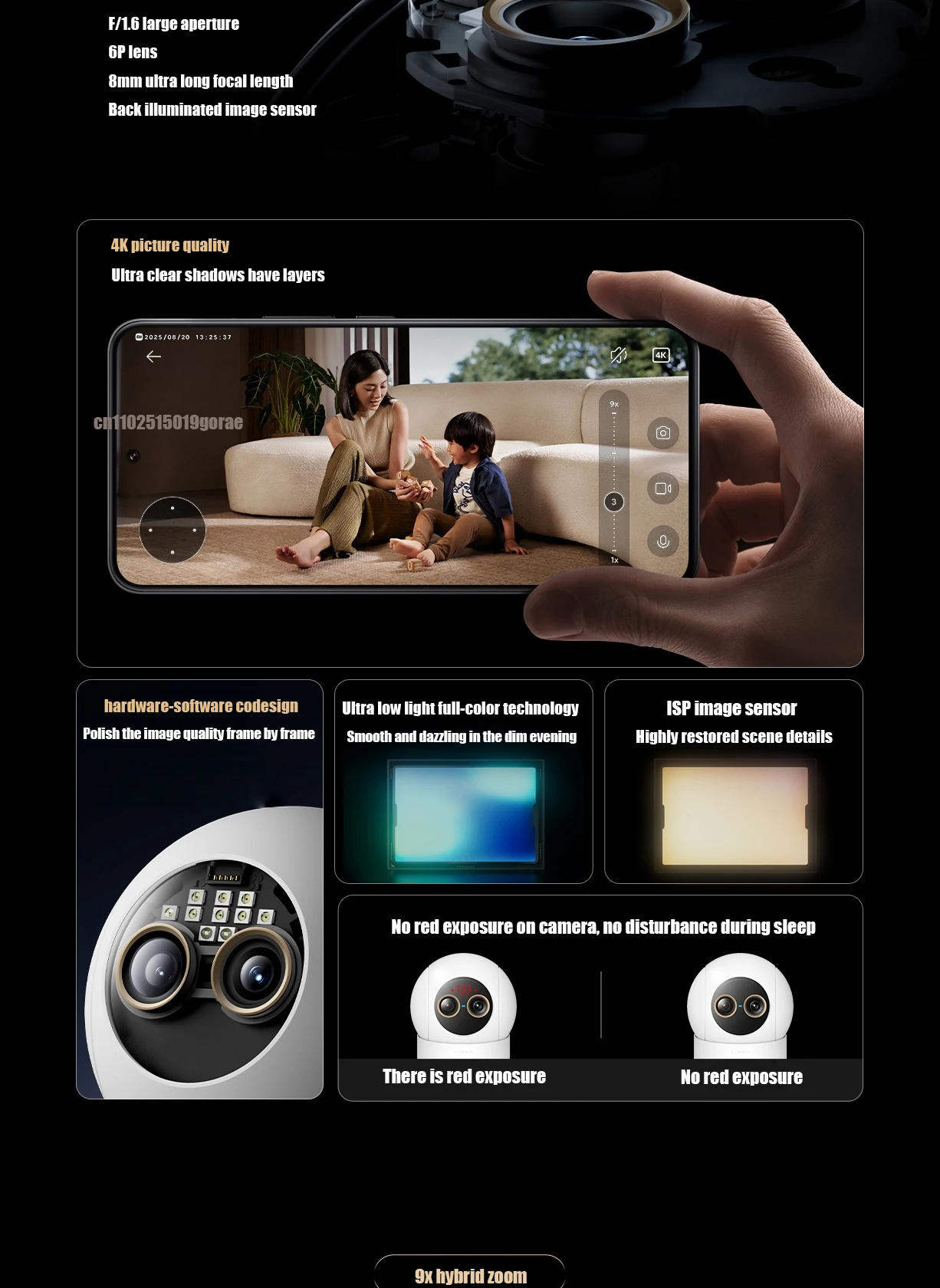
The Xiaomi Smart Camera 4 – Zoom Version is designed for clear, high-resolution indoor monitoring. Featuring a hybrid zoom system and advanced image processing, it helps capture both wide room views and closer details, making it suitable for living spaces, offices, and indoor environments.
Why it fits indoor monitoring needs
- High-resolution imaging: designed to deliver clear indoor video.
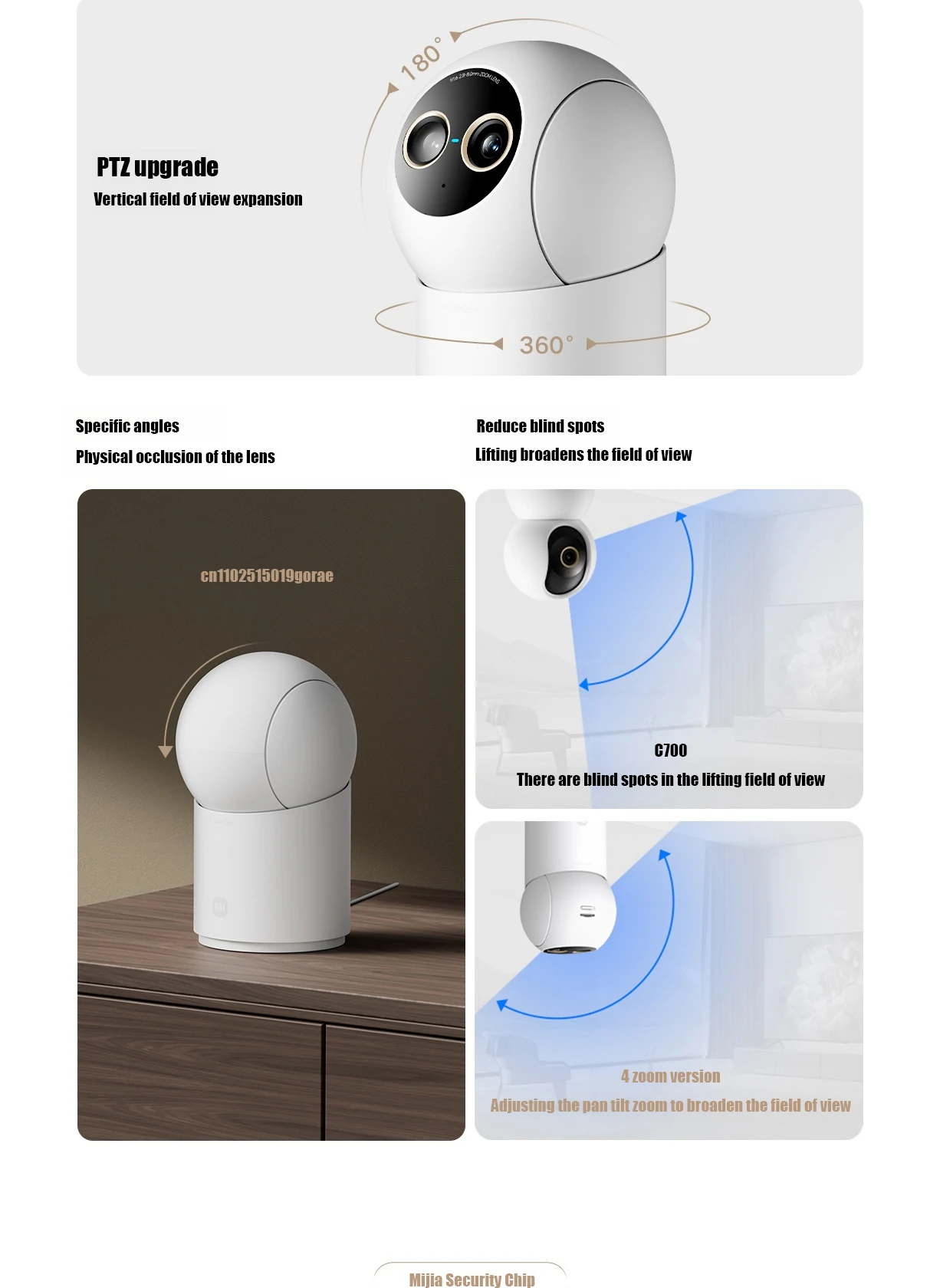
- Hybrid zoom capability: allows flexible viewing from wide to close-up.
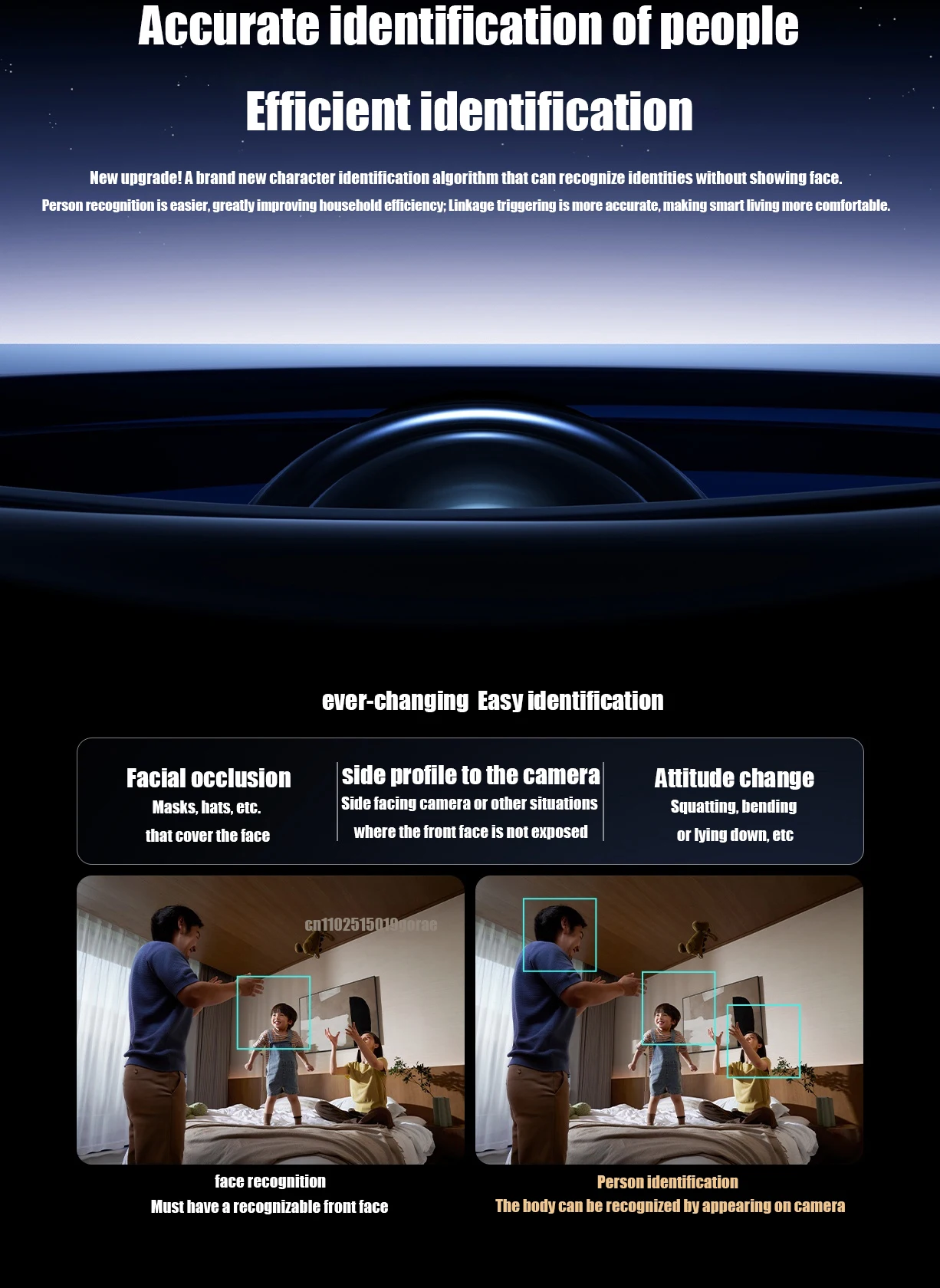
- AI-assisted processing: optimized image clarity and scene handling.
- Indoor-focused design: ideal for homes and workspaces.
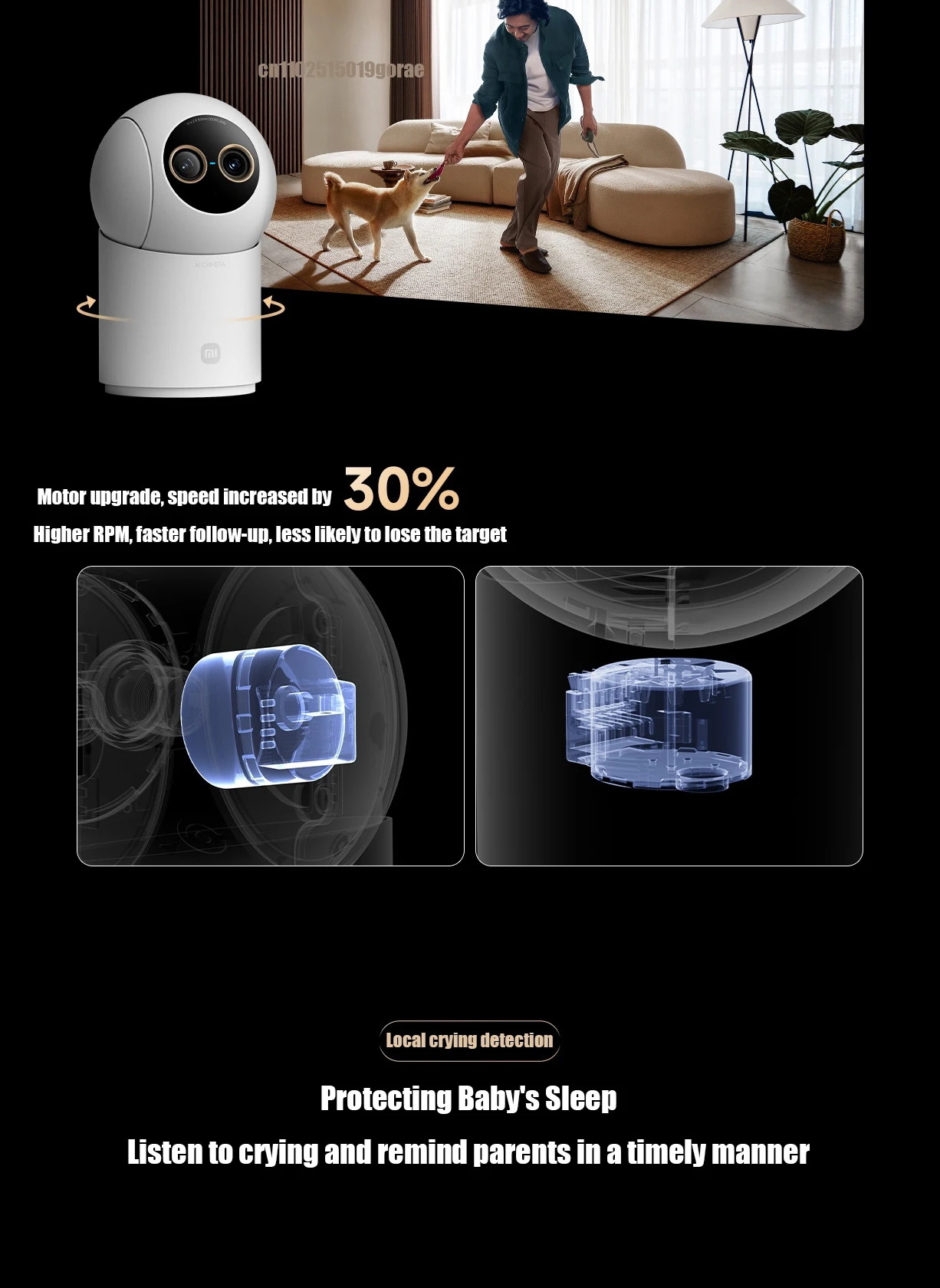
- Remote viewing support: access live footage through compatible apps.
Designed for everyday indoor awareness
By combining zoom flexibility with detailed video capture, this camera supports better indoor visibility without the need for multiple devices.
Specifications
Frequently asked questions
Is this camera designed for indoor use?
Yes, it is intended specifically for indoor environments.
What does hybrid zoom mean?
It allows flexible viewing between wide-angle and closer perspectives.
Does it support remote monitoring?
Yes, live viewing is available through compatible mobile applications.
Is this a security or alarm device?
No, it is designed for visual monitoring and awareness only.
NOTE: This product version is for the China region. When adding cameras, please select the Chinese server in the Mijia settings.
User Instructions:
1.Please download the Mi Home app first. After downloading, Click "Profile" - "Additional settings".
2.In "Language & region", set "Region" to "Chinese Mainland".
3.Connect the power.
(1) Insert the power adapter cable into the camera power port, and the camera will automatically power on.
(2) The indicator light will be solid yellow, and you will hear a voice prompt indicating successful power-on.
(3) Click the "+" in the upper right corner, then click "Scan".
4.Follow the on-screen instructions to reset the product. Click "Device Reset".
5.Select Wi-Fi and Click"Next".
6.Continue until the connection is successful.
*The app server can only be selected as Mainland China. Ensure a smooth network connection during connection, with the camera turned on normally and the indicator light solid yellow; after successful connection, the indicator light will be solid blue.
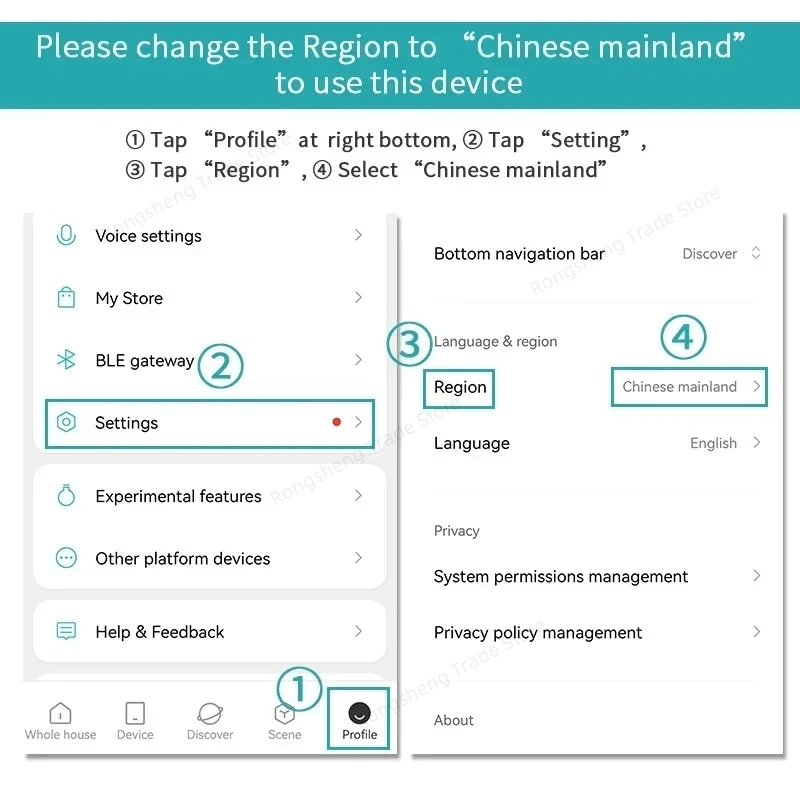
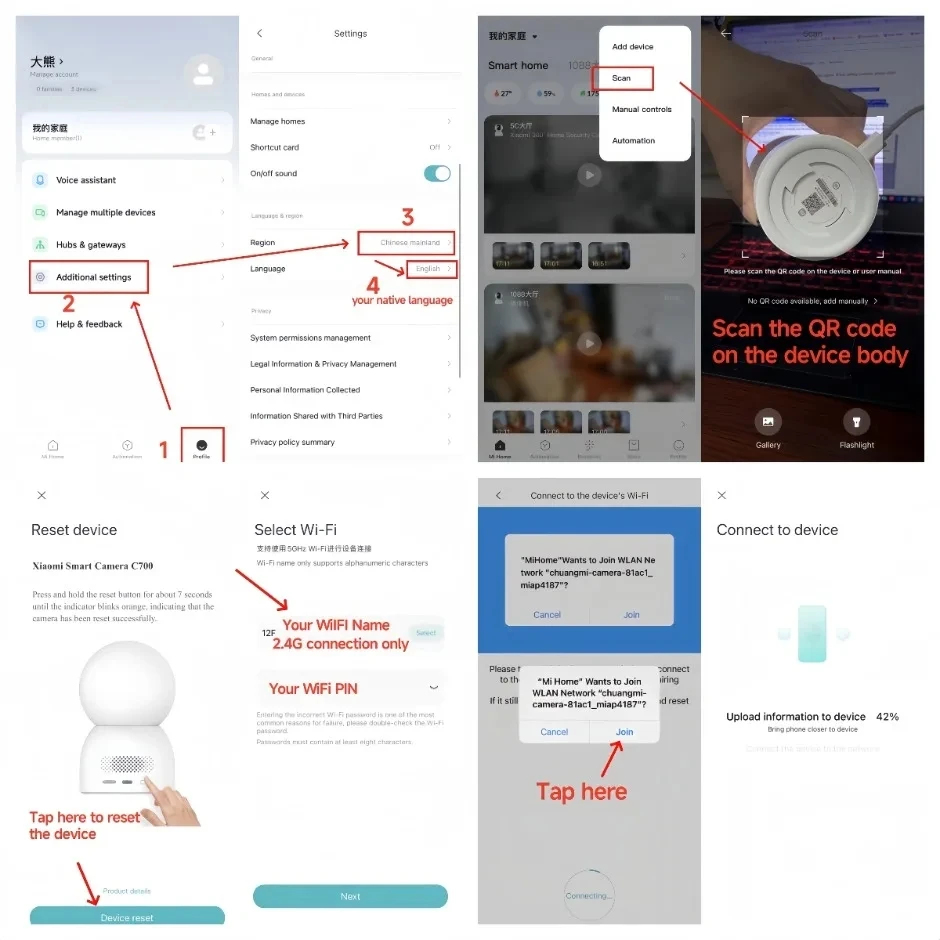
Powering On: Insert the power adapter cable into the camera's power port, and the camera will automatically power on. The indicator light will be solid yellow, and you will hear a voice prompt, indicating successful startup.
Connecting to Mi Home App: This product is already integrated into Mi Home, allowing control through the Mi Home app and seamless integration with other products. Scan the QR code to download and install the Mi Home app. Users who have already installed the Mi Home app will directly access the device connection page. Alternatively, you can search for "Mi Home" in the app store, download, and install the Mi Home app. Open the Mi Home app's homepage, click the "+" in the upper right corner, and follow the app's prompts to add the device.

Shipping & Rerturns
Shipping & Rerturns
Order Processing
Orders are processed within 1–3 business days.
Orders placed on weekends or public holidays are processed the next business day.
You will receive a confirmation email once your order is shipped.
Delivery Estimates
Region Estimated Delivery Time
United States 5–10 business days
Canada 6–12 business days
Europe (EU & UK) 5–12 business days


